Map Drive - Radar, Speedometer
- 4.0
- Rating
- 10.00M
- Installs
- Free
- Price
 Analysis by App-foxy
I spend a lot of time switching between navigation, speedometer, compass, and traffic tools, so I was interested in seeing whether Map Drive - Radar, Speedometer could make those jobs feel less scattered. It is a free Android app from Tiki Punch Studio in the Maps & Navigation category, built around GPS guidance, route viewing, driving information, a compass, a heads-up display, speed-camera alerts, and radar-style traffic updates. In daily use, that combination makes more sense for drivers who want a compact dashboard than for someone looking for a full replacement for every established mapping service.
The app is called Map Drive - Radar, Speedometer, and its appeal is easy to understand: instead of opening one app for directions and another to check speed or orientation, I can keep several driving-related tools in one place. That does not automatically make it the best navigation choice for everyone, but it gives the app a clear purpose. It is especially interesting for people who prefer a straightforward driving screen and want quick access to information without constantly changing apps.
What Map Drive actually offers on the road
The main experience revolves around movement. GPS and maps provide the foundation, while routes help turn a destination into a practical drive. The compass is useful when I need a quick sense of direction rather than a full route, and the speedometer gives the screen a more immediate driving focus. The HUD option is aimed at displaying key information in a way that can be read with less attention diverted from the road.
You May Also Like

 Blood Strike: 2.5 Anniversary
Blood Strike’s Loadouts Turn Every Drop Into a Tactical Gamble
A close look at Blood Strike’s custom loadouts: how fast access to signature weapons reshapes its battle royale rhythm, rewards preparation, and narrows the gap between fights.

 Pandora - Music & Podcasts
Pandora’s Music Is Easy to Start, but Harder to Recover
Pandora’s strength is its low-effort path from a seed to a station. Its weak spot is how much confidence it asks you to place in connection, setup, and quiet recovery.

 8 Ball Pool
 Is Built on Rivalries, Rematches, and Routine
A close look at the rivalries, rematches, shared routines, and unanswered safety questions that turn a quick pool match into a persistent mobile community.

 Samsung Music
’s Quiet Strength Is Playing What You Already Own
Its reach comes less from spectacle than from dependable access to a personal library. That simplicity is both the app’s strongest retention engine and its ceiling.

 AccuWeather: Weather Radar
AccuWeather Review: A Quick, Clear Forecast for Everyday Decisions
For everyday plans, the best forecast is the one you can understand quickly. AccuWeather makes rain timing, radar, and local conditions easy to act on, with a few trade-offs.

 Hill Climb Racing
Why Hill Climb Racing Still Turns Crashes Into One More Run
A tiny car, a bumpy hill and one more upgrade: Hill Climb Racing keeps resurfacing because its simple chaos makes every near-miss feel personal.
More From Our News Desk



I would treat the HUD as a convenience rather than a reason to ignore safe driving habits. A reflected or simplified display can be handy when the phone is positioned appropriately, but it does not remove glare, mounting, visibility, or distraction concerns. I would set everything up before moving, use a secure phone holder, and avoid touching the screen while driving. The best use of this feature is as a glanceable aid, not as an invitation to interact with the phone in traffic.
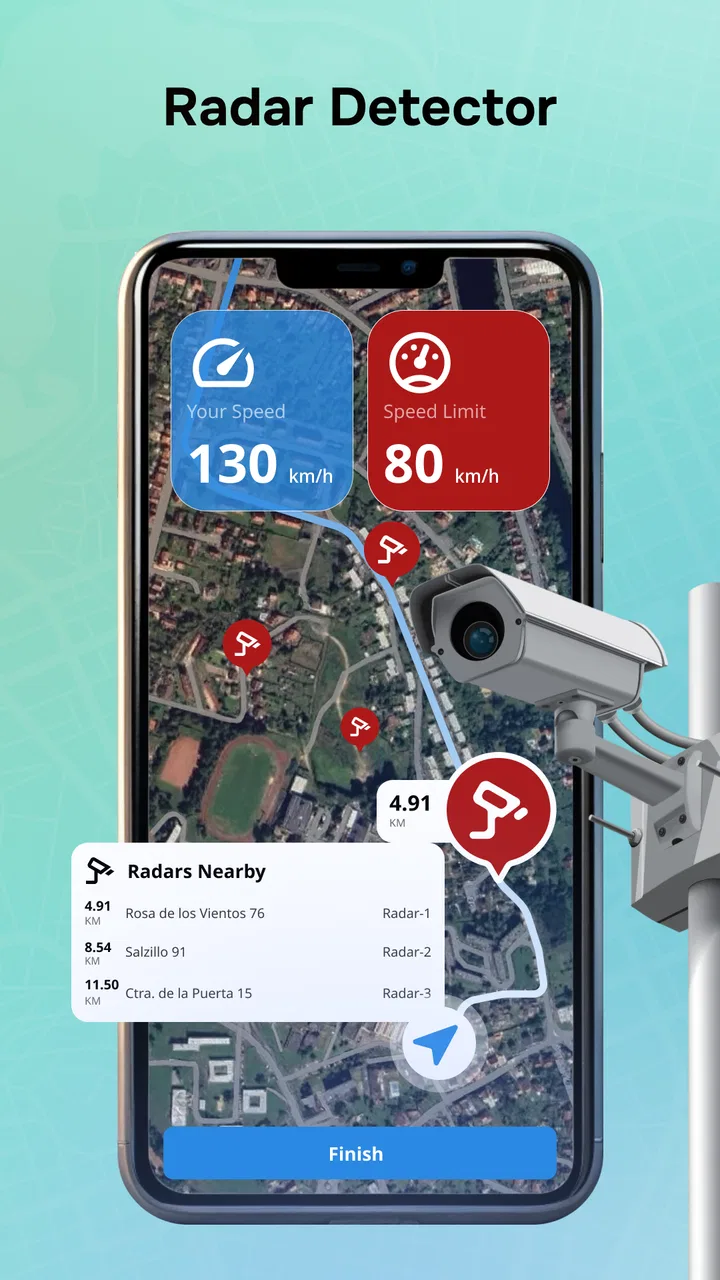
The speed-camera and radar elements give the app a more specialized identity than a basic map. They may be useful to drivers who want reminders about road conditions and monitored areas, but I would not treat any alert as a substitute for watching signs or following local rules. Road information can change, and the driver remains responsible for interpreting what is happening around the vehicle.
One practical strength is the way these tools can support different stages of a trip. Before leaving, I can check a route and get the map ready. During the drive, the speedometer and route view become more relevant. When I am no longer navigating, the compass can still be useful for orientation. That broader usefulness is more convincing than simply calling the app a map.
A realistic commute workflow
Imagine leaving work for an unfamiliar neighborhood during a busy evening. I would first choose the destination while parked, inspect the proposed route, and make sure the navigation view is readable. Once moving, I would rely on the route display for direction and use the speed information as a quick reference. If traffic conditions change, radar-style updates may help me notice that the original plan deserves another look, although I would only make route changes when safely stopped or when the app can handle them without manual distraction.
After arriving, the compass can be more useful than expected. In a large parking area, a campus, or a new residential district, knowing which way I am facing can make the next part of the journey easier. This is a small detail, but it shows why the app works best as a collection of driving aids rather than only as a destination finder.
How the free access affects its value
Map Drive is free, so the basic value question is simple: there is no purchase price to weigh against the features described here. That makes it easy to try for a commute, a road trip, or occasional navigation without committing money first. I see this as its strongest advantage over paid navigation utilities, especially for someone who wants a secondary tool rather than a service they will use every day.
Free access does not mean it will suit every driver. The real cost may be attention, setup time, data use, or the need to keep another navigation app installed for situations where it performs better. I would judge it by whether its combined dashboard reduces friction in my routine. If I still need to open several alternatives for core directions, the fact that this app costs nothing becomes less important.
There is also a difference between trying an app and depending on it. For occasional trips, the free model makes experimentation painless. For professional driving or long journeys through unfamiliar areas, I would test the route behavior, alerts, screen readability, and reliability in advance rather than making it my only source of guidance on the first day.
The app has a 4.1 average from around 19 thousand ratings, with over 10 million installs and 372 written reviews. Those figures suggest that many people have tried it, but they do not tell me whether it will match a particular phone, driving style, or region. I regard that level of adoption as a reason to investigate, not as proof that it is universally dependable.
Where it differs from familiar alternatives
Compared with a conventional map app, Map Drive places more emphasis on the driving panel. A mainstream navigation service may feel stronger when I need rich place information, extensive business listings, transit planning, or a deeply familiar route workflow. Map Drive is more appealing when I want speed, compass, HUD, and traffic-oriented tools close together.
Compared with a dedicated speedometer, it offers more context because the map and route remain part of the same experience. A standalone speed tool can be simpler if I only care about speed, though it will not provide the same all-in-one approach. Compared with a separate compass, this app is more useful during a journey but may feel excessive when I only want to identify direction quickly.
This comparison leads to an important trade-off: convenience versus specialization. One app covering several jobs can make a phone less cluttered, but a dedicated alternative may do one job with a cleaner interface or a workflow I already trust. I would choose Map Drive when consolidation matters more than having the most mature tool in every individual category.
Tradeoffs I noticed before making it a regular tool
The first limitation is that a combined dashboard can become visually busy. Maps, route instructions, speed information, compass direction, camera warnings, and traffic updates all compete for attention. I would not activate every visible element simply because it is available. A better approach is to decide what matters for the current trip and keep the display as calm as possible.
The second limitation concerns trust. GPS-based speed readings can differ from a vehicle’s instrument, and traffic or camera information should be treated as assistance rather than certainty. I would use the car’s speedometer and road signs as the final reference. The app can support awareness, but it cannot replace responsible driving or local knowledge.
Another trade-off appears when the phone is used as a HUD. The idea sounds convenient, but the physical setup matters enormously. Reflections, viewing angle, brightness, and the position of the phone can determine whether the display helps or becomes distracting. I would test it while parked and remove it from my routine if it forces me to look away from the road more often than a normal mounted screen.
Maps and live driving information also depend on the conditions under which the phone is being used. I would not assume that every route, alert, or traffic indication will behave identically in every location. Before a long drive, I would check the route in advance, keep the phone charged, and have a backup plan. That is sensible with any navigation app, but the radar and speed-focused presentation can create an impression of complete road awareness that no phone application can guarantee.
The app runs on Android devices using version 7.0 or later. That is helpful for people with older compatible phones, although performance will still depend on the individual handset, GPS reception, screen quality, and how smoothly the device handles map activity. I would pay attention to heat and battery use during a longer drive, particularly if the display stays bright and the phone is charging in a warm car.
The current version is 5.8.0, and the app is rated for Everyone. Those details make it approachable for a broad audience, but an age rating is not a driving qualification. New drivers should still learn local road rules and safe navigation habits rather than relying on alerts or a large on-screen speed readout.
Small habits that make the app more useful
I found that the best workflow starts before the engine does. I would choose the route while stationary, check that the map orientation feels natural, and decide whether the compass, HUD, or speed display is actually needed. This prevents the common mistake of configuring a crowded screen after the trip has already begun.
A second useful habit is to separate information from action. I can glance at a traffic indication or camera warning, but I should not respond with a sudden maneuver or manual route change. If the app suggests that conditions are different from expected, I would continue safely and reassess only when stopped. This makes the alerts useful without allowing them to dictate impulsive decisions.
A third tip is to use the compass outside the most obvious navigation moment. When walking from a parked car to a building, orienting myself in a large open area, or checking the direction of a return route, the compass may be faster than entering another destination. That gives the app value even on days when I do not need full turn-by-turn guidance.
I would also compare the app with my usual navigation tool on a few familiar trips. Familiar roads make it easier to notice whether the route presentation is comfortable, whether the speed display is readable, and whether the alerts add useful context or simply make the screen busier. Testing in known surroundings is safer and more informative than judging it during a stressful unfamiliar journey.
Who should use it, and who should skip it?
Map Drive is a good fit for drivers who want an inexpensive, multipurpose dashboard. It makes sense for someone who regularly uses a speedometer, compass, route map, and traffic information but dislikes jumping between separate apps. It may also suit occasional travelers who want to try a free tool before deciding whether they need something more specialized.
It is less convincing for users who already have a navigation service they trust and only want the most polished route guidance. If your priorities are extensive place discovery, public transport, deep offline planning, or a familiar ecosystem of saved locations, a conventional map alternative may be the better primary choice. I would also skip it as a sole driving solution if you are unwilling to test it in your own area first.
Professional drivers should be especially selective. The combination of route, speed, and alerts may be convenient, but a professional workflow often depends on predictable behavior, clear policies, and tools tailored to a specific fleet or operating environment. A free general-purpose app can be a useful supplement, yet I would not assume it replaces equipment or software designed for that responsibility.
My final recommendation
I recommend trying Map Drive if you want a free Android driving companion that brings maps, routes, speed information, compass guidance, HUD viewing, and traffic-oriented alerts into one app. Its value comes from combining those functions without asking for a purchase, and that makes experimentation easy. The strongest use case is not “the best map for everyone,” but “a practical extra dashboard for drivers who want several tools together.”
I would keep expectations measured. The app is not automatically a replacement for a mature navigation service, a dedicated speedometer, or careful attention to road conditions. Its broad feature set can be helpful, but it also means I need to simplify the display, prepare routes while parked, and treat alerts as supporting information. Those habits determine whether the app feels focused or overloaded.
For me, the buy-or-skip decision is straightforward because there is no purchase price: try it if the combined driving view appeals to you, then compare it with your current navigation routine on familiar roads. Keep it if it genuinely reduces app switching and makes trips easier to monitor. Skip it if you need a highly specialized navigation system or find that the extra panels distract more than they help. The free access lowers the risk, but safe testing and honest comparison decide the real value.
Tiki Punch Studio has made an approachable Maps & Navigation app for people who want more than a basic route line. With an Everyone content rating and support for Android 7.0 and later, it is accessible to a wide range of users. I see it as a useful secondary driving tool and a worthwhile free experiment, provided you use it as an aid rather than treating any phone-based map, radar, or speed alert as infallible.
FAQs for Map Drive - Radar, Speedometer
01What features does Map Drive - Radar, Speedometer offer?
Map Drive - Radar, Speedometer provides real-time navigation with a built-in speedometer and radar detection. Users can track their speed, receive alerts about speed limits, and detect nearby speed cameras and radars. The app also offers GPS-based navigation to ensure you reach your destination safely and efficiently.
02Is Map Drive - Radar, Speedometer available offline?
Yes, Map Drive - Radar, Speedometer offers offline maps for users who may not have consistent internet access. By downloading maps in advance, you can use the navigation and speedometer features without requiring a data connection, making it ideal for remote or rural driving.
03How accurate is the speedometer in Map Drive?
The speedometer in Map Drive is highly accurate, utilizing GPS technology to provide real-time speed data. However, its accuracy can be influenced by the quality of GPS signal in your area. It’s advised to calibrate the app with your vehicle’s speedometer for the best experience.
04Does the app provide alerts for speed cameras and radars?
Yes, Map Drive - Radar, Speedometer includes a feature to alert drivers of upcoming speed cameras and radars. The app updates its database regularly to ensure you receive timely notifications, helping you maintain a safe and legal driving speed.
05Is Map Drive - Radar, Speedometer compatible with both Android and iOS devices?
Map Drive - Radar, Speedometer is available for both Android and iOS platforms. It is designed to work seamlessly on a wide range of devices, ensuring a smooth user experience regardless of your device’s operating system.
Pros
- Accurate real-time traffic updates.
- User-friendly interface with intuitive design.
- Customizable speed alerts for safety.
- Offline maps available for no-data areas.
- Lightweight app with minimal battery drain.
Cons
- Limited map coverage in rural regions.
- Ad-supported free version can be intrusive.
- Occasional GPS signal loss in tunnels.
- No voice navigation option available.
- Frequent updates required for new features.

Map Drive - Radar, Speedometer
Gallery